This article is a step-by-step Windows Server 2022 installation guide.
Windows Server 2022 Installation Overview
Windows Server 2022 was announced in 2021 with a ten-year support cycle. It’s designed for small-to-medium-sized businesses and offers increased stability and performance.
If you’re looking to upgrade your IT infrastructure to be more reliable and efficient, then the time has never been better!
Some of the new features in Windows Server 2022 include the following:
- AMD CPUs now support nested virtualization.
- As the default web browser, Microsoft Edge is bundled with the system.
- Improved security features to increase protection against all sorts of attacks, such as malware, privacy, and network attacks.
- Enhancements to UDP/TCP performance.
- Hybrid capabilities in Azure.
Who should install Windows Server 2022?
The latest version of Microsoft Windows Server is the perfect fit for businesses and professionals who want to take their job more seriously, or educational institutions can benefit from Windows Server 2022.
It also works well with other professionals like engineers and educational organizations, giving them more uses than before! Windows Server 2022 offers peace of mind for safety-conscious employers in charge of running a business where you want people’s data secure.
Specifically, there has been an increased focus on the cloud, a foundation for data centers that provide our increasingly mobile world with technology-based communications. If you need support for cloud functionality, Windows Server 2022 is the perfect server OS to get invested in.
In conclusion, with the recent release of Windows Server 2022, businesses and organizations can now take their jobs seriously. This new version is tailored more specifically towards professionals in data centers who provide cloud services worldwide!
How to install Windows Server 2022?
Installing Windows Server 2022 can be a major change for your organization.
Note: To ensure you have the necessary tools and resources, carefully read through this guide. You’ll learn how installing a new Windows Server operating system can affect all areas of IT in an effective way that’ll meet current needs while preparing for future innovations.
Before installing Windows Server 2022 you have to create an installation media for Windows Server 2022 after that you can continue this article.
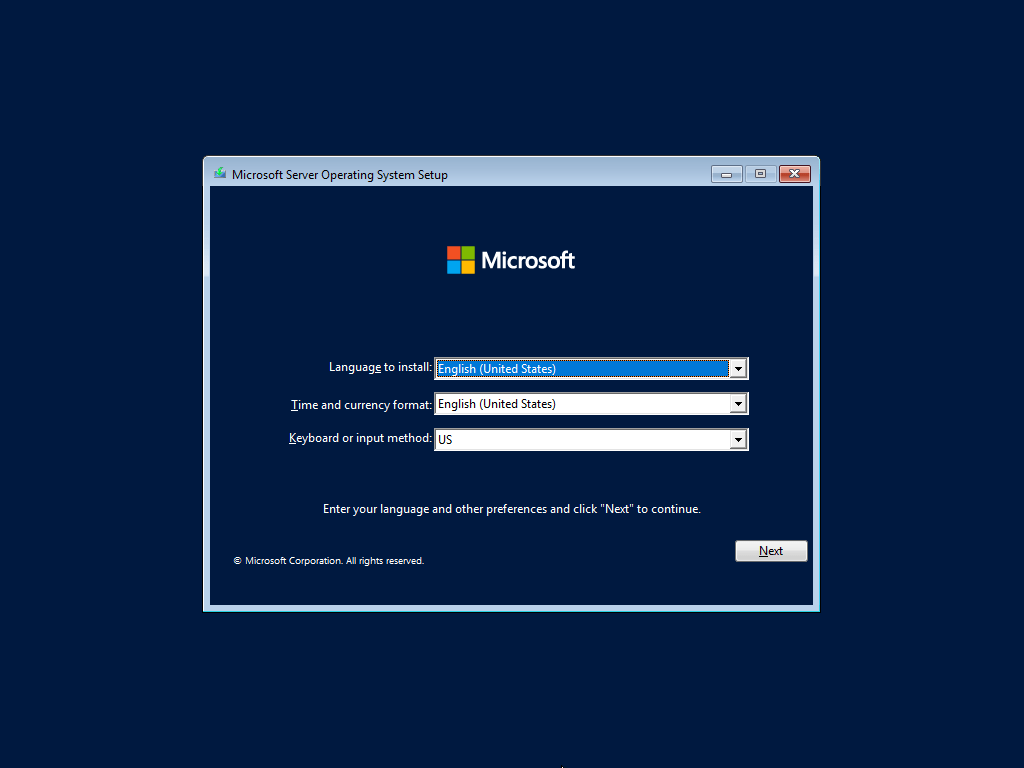
[1] Insert Windows Server installation media to an optical drive of your computer and restart the computer, then, following screen is displayed, proceed next to click [Next] button.
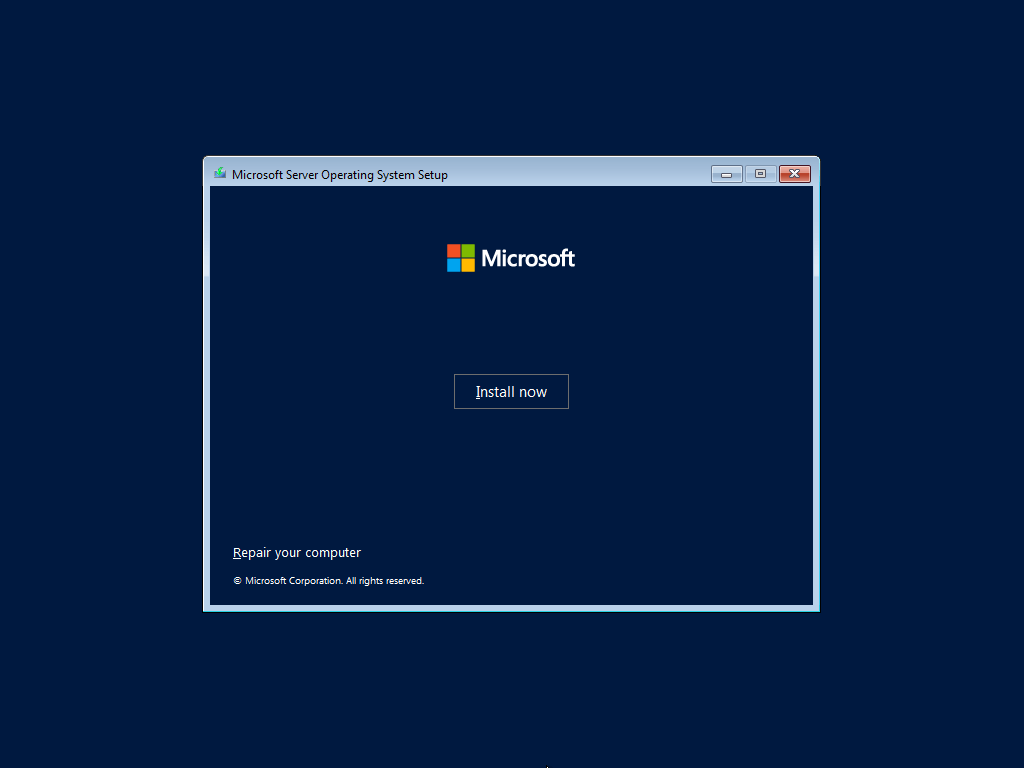
[2] Click [Install Now] to start installation.
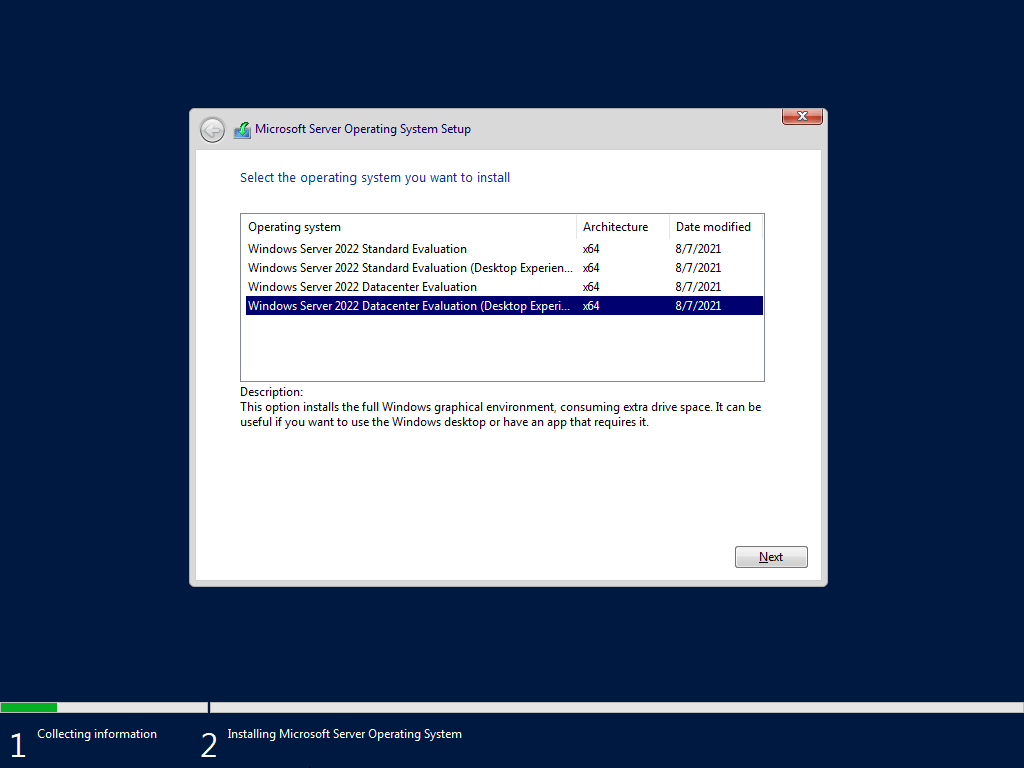
[3] Select the edition of Windows server you’d like to install.
On this example, procced with [Datacenter with Graphical ***] version.
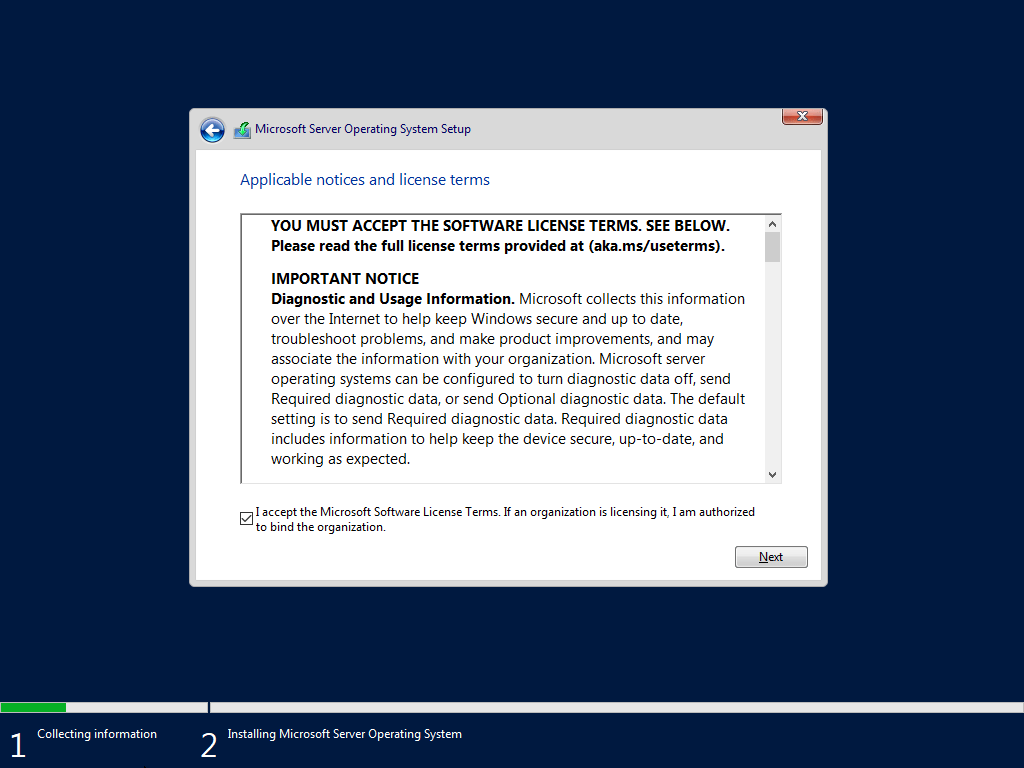
[4] Read License Terms Well and check a box [I accept ***] to proceed next.
[5] For newly installation of Windows server, select [Custom: Install Windows only].
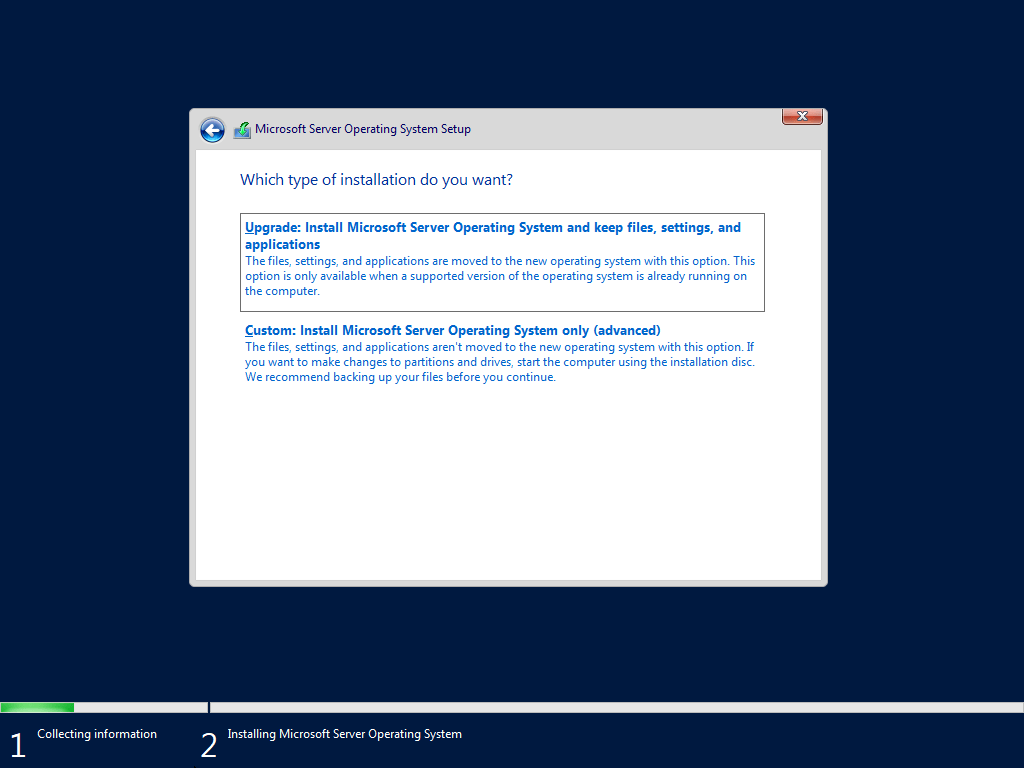
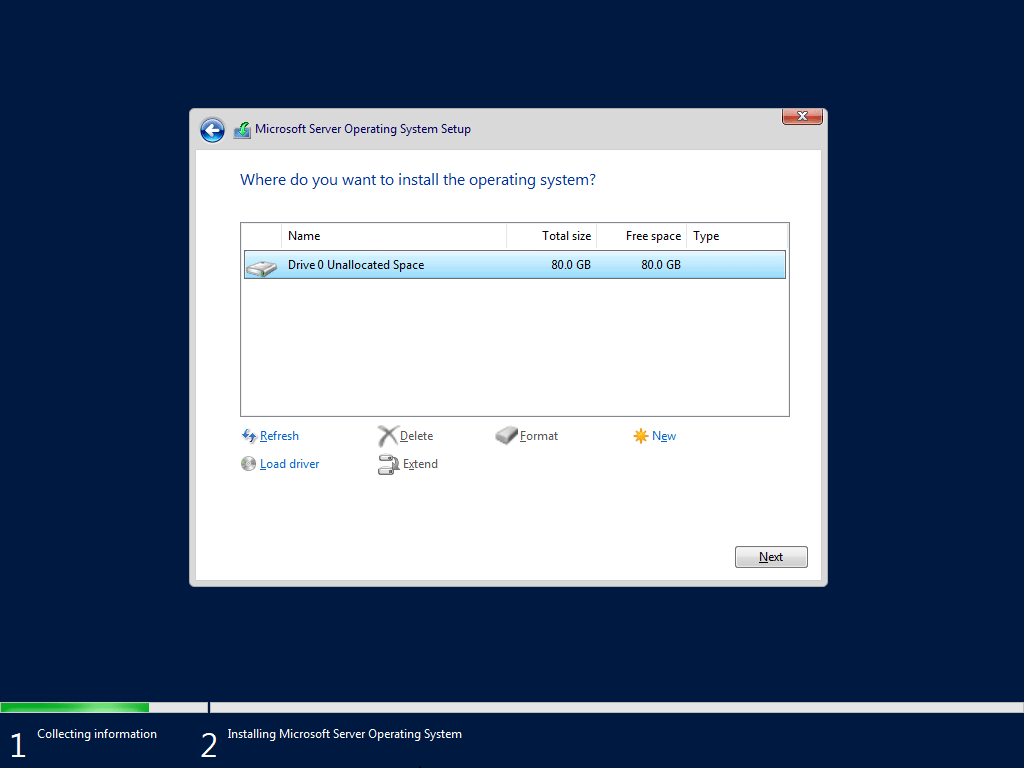
[6] Select a partition to install Windows Server.
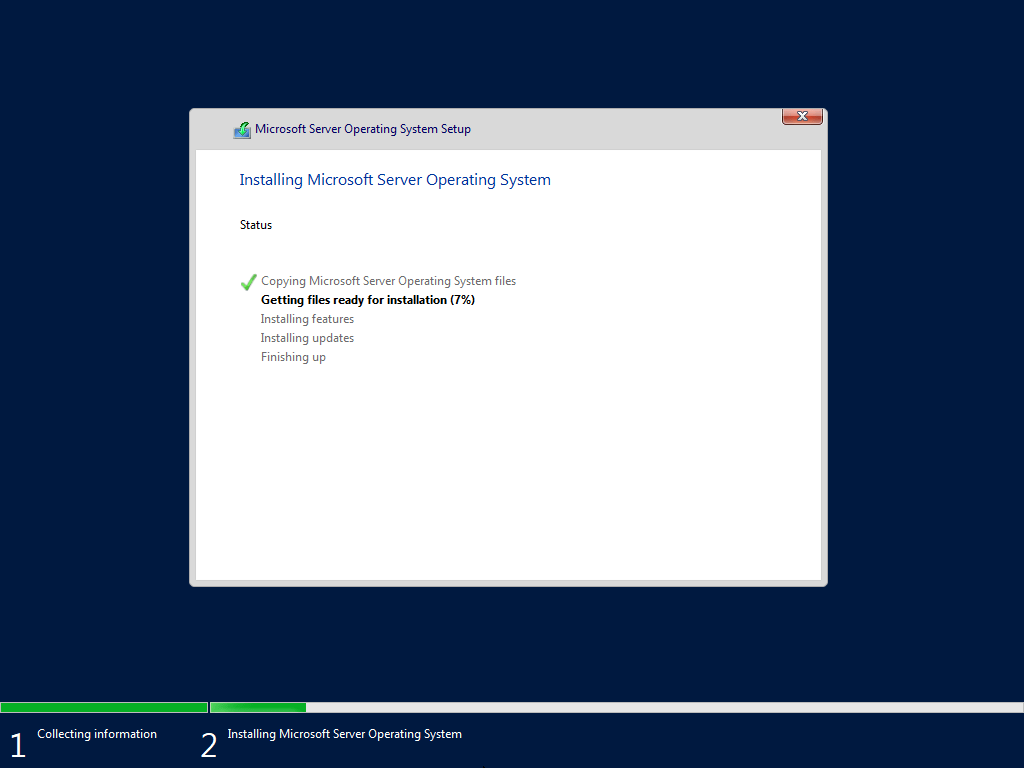
[7] Installation of Windows Server starts. During installation, computer restarts automatically.
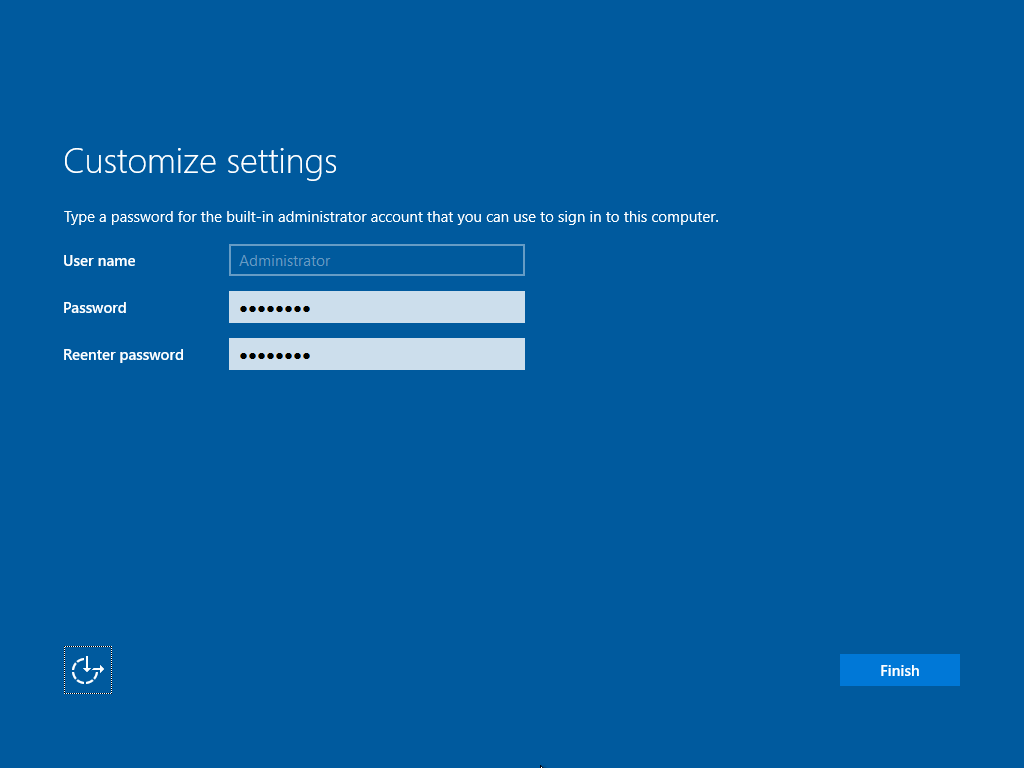
[8] After restarting computer, following screen is shown, then Set Administrator password.
[9] Push Ctrl + Alt + Del key to sign-in.

[10] Input the Administrator password you set on section [8] to sign-in.
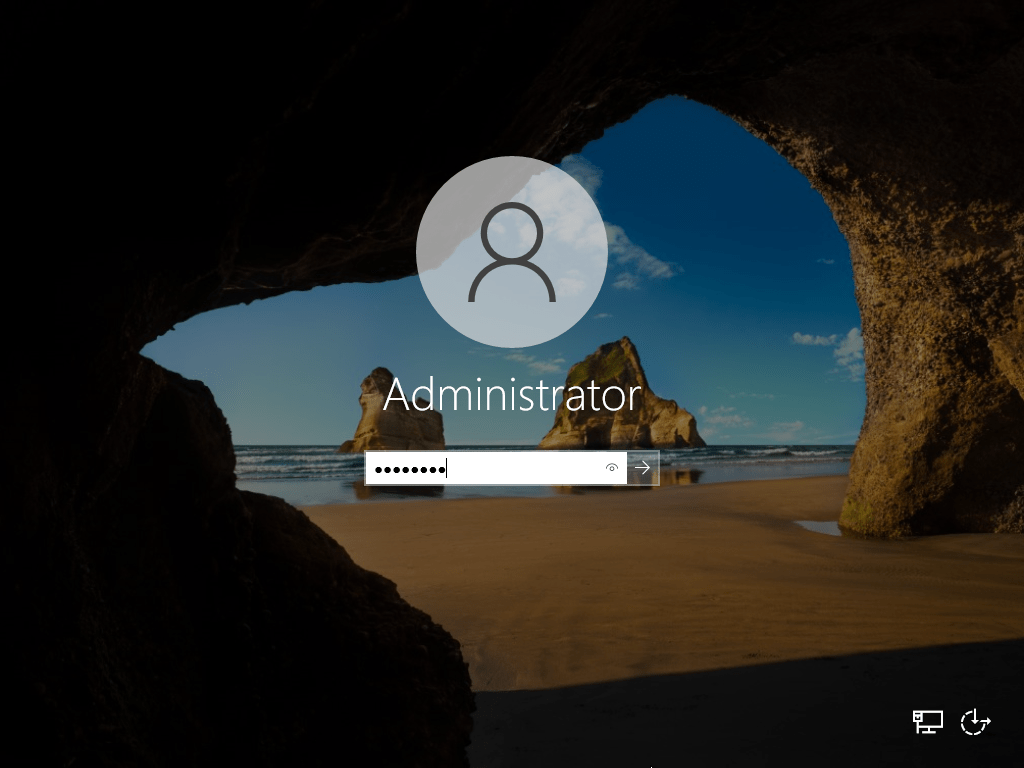
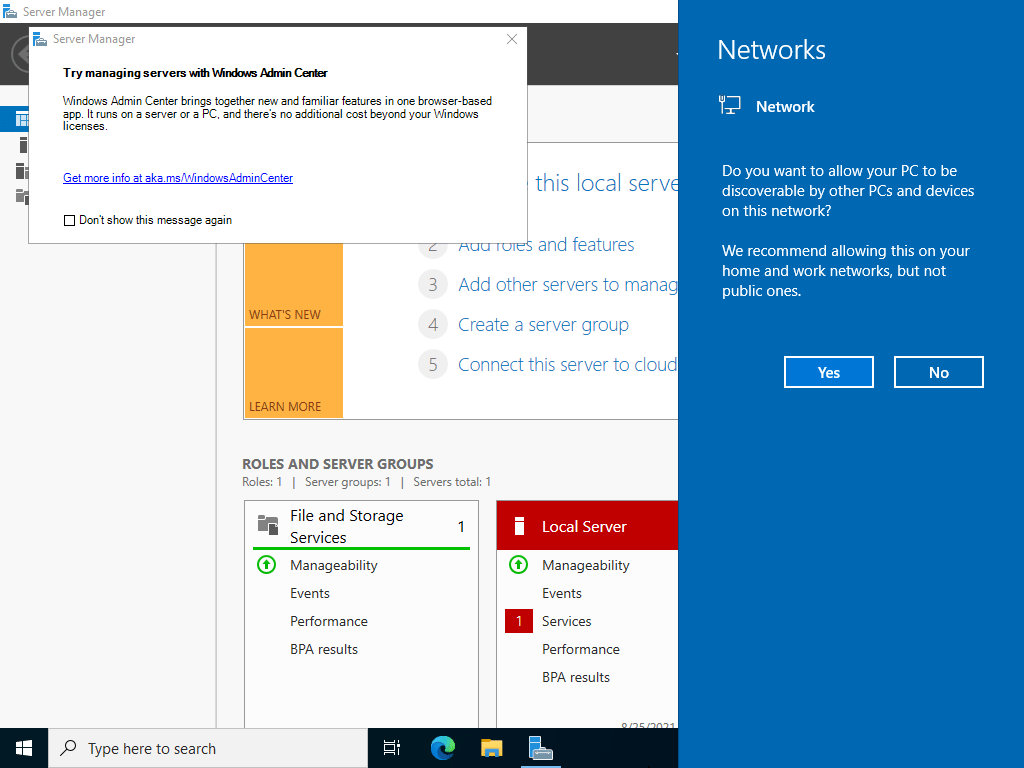
[11] Just logon to Windows Server. For initial logon, setting confirmation of Networks is displayed like follows, Select Yes or No.
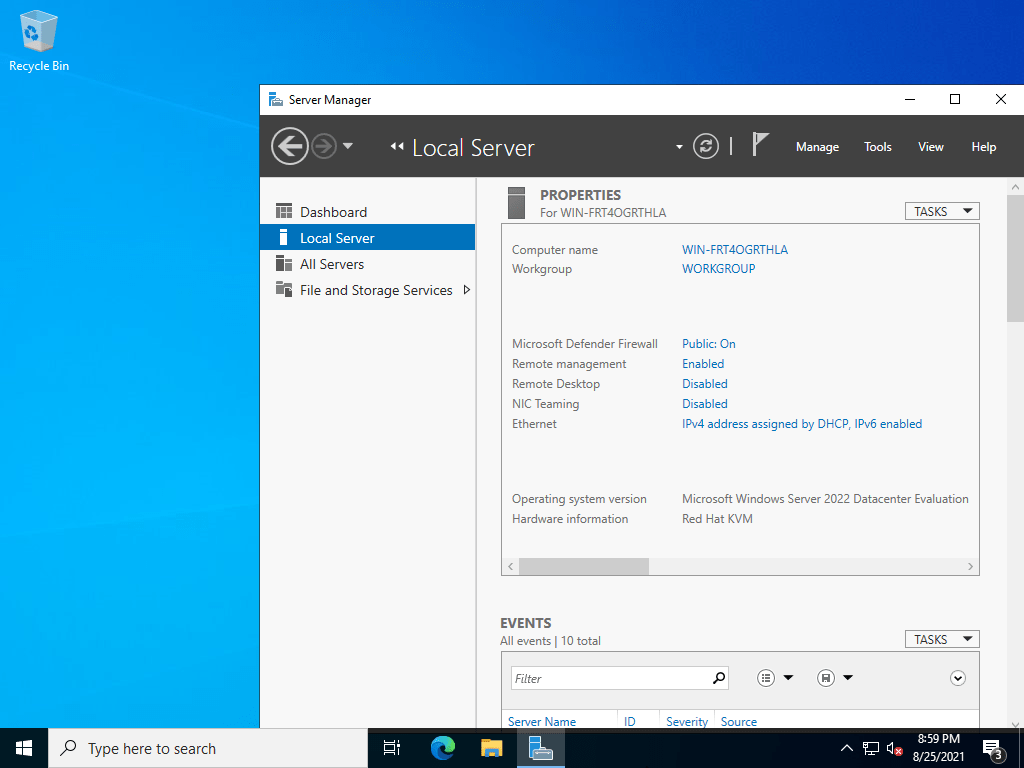
[12] This is the Desktop on Windows Server 2022. Installation of Windows Server completes.
Disclaimer:
The content of this podcast is generated by NotebookLM, an AI-powered tool designed to assist with creative and informational tasks. While every effort has been made to ensure accuracy and relevance, the information and opinions expressed in this podcast are AI-generated and should not be taken as professional advice, factual truth, or the views of any individual or organization. Listeners are encouraged to independently verify any information and consult appropriate experts or sources for specific guidance. The creators of this podcast are not responsible for any errors, omissions, or outcomes resulting from the use of this content. Enjoy responsibly!
Need help with Aramco CCC Certification?
Get a Free Expert Consultation.