All Posts
Windows Server 2022 181 Views 2 min read

How do I create installation media for Windows Server 2022?

Last Updated March 29, 2026
How do I create installation media for Windows Server 2022

Once you’ve downloaded the installation file (Windows Server 2022 .iso), create a bootable USB drive (pendrive) to perform the installation.

Note: You’ll need a USB device with a minimum memory of 16GB.

The application you can use for this process is:

Rufus

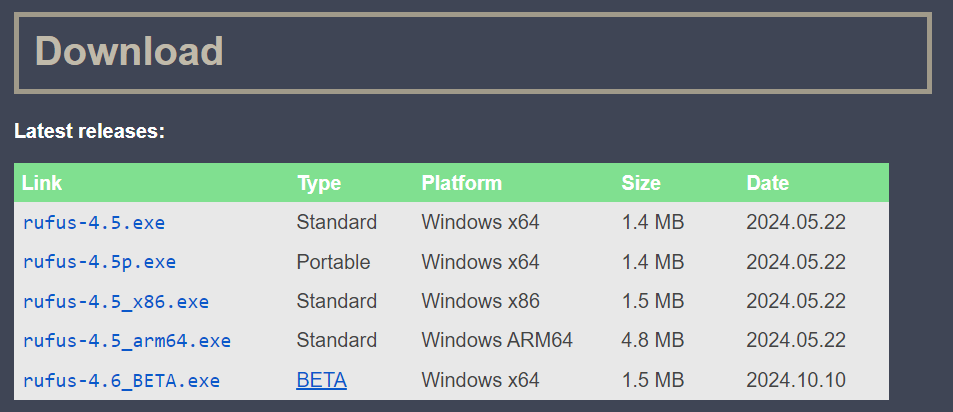
A screenshot showing the Rufus website's download section, indicating which version/link to click to download the latest Rufus executable
  • Connect the USB and then open the Rufus programme
  • Click on Select and find the Windows Server 2022 .iso file you want to set up.
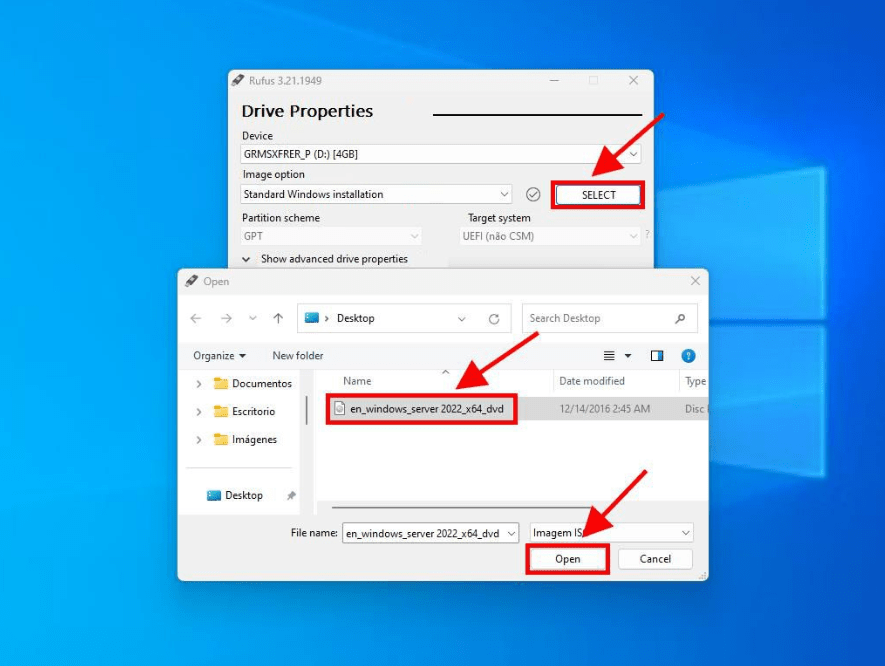
A screenshot of the Rufus program interface showing a connected USB drive selected, the "Select" button being clicked, and the Windows Server 2022 .iso file loaded into the "Boot selection" field
  • Finally, click on Start and wait for the programme to create the bootable USB drive.

Note: It will show a popup window called Customize Windows Installation, select option 3 Disable Data Collection and wait for the program to create the bootable USB drive.
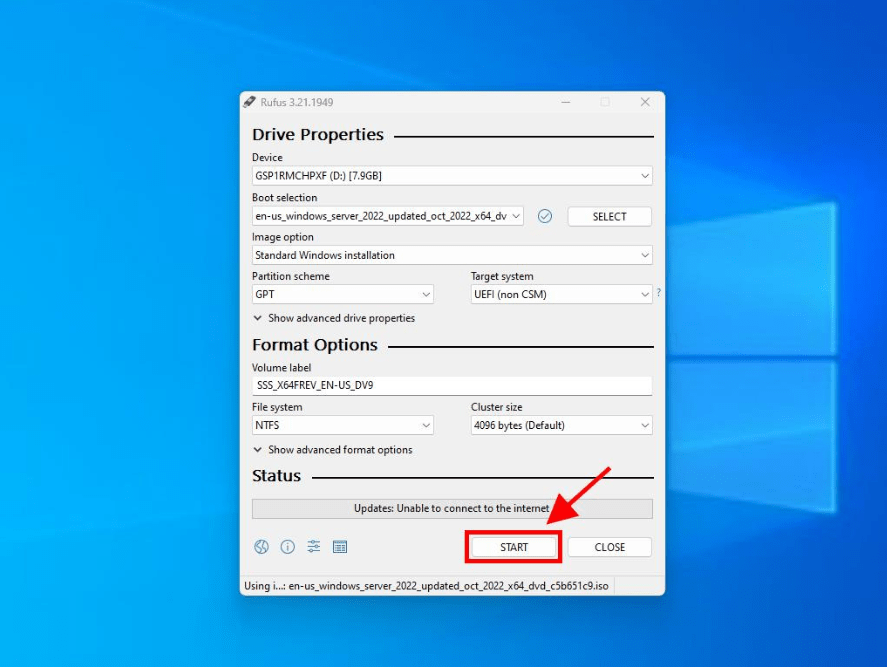
A screenshot showing the "Customize Windows Installation" popup that appears after clicking "Start" in Rufus. It specifically highlights checking the third option, "Disable Data Collection (Skip privacy questions)"
  • Once the setup is complete (Prepared progress bar), click on Close and you’ll be ready to install Windows Server 2022.
A screenshot showing the bottom of the Rufus window with the green "READY" progress bar, indicating that the bootable USB creation process is complete and the user can now click "Close"
Share this article:
Fast-Track Your Compliance

Need help with Aramco CCC Certification?

Get a Free Expert Consultation.
Aramco Kit

Ali Aljubaily

Cybersecurity Consultant

I am Ali Yousef, a certified engineer from Microsoft, holding the Microsoft Certified System Associate certification as well as the CompTIA Network+ certification. I work as the Group IT Manager.

Latest

Explore Our Blog Posts

Discover insightful articles on cybersecurity and more.

Microsoft 365 2 Views 7 min read

How to Enable Intune MDM Scope in Microsoft Entra

Control automatic device enrollment for Windows endpoints using Mobility (MDM and MAM) settings
Read more
Exchange Online 17 Views 7 min read

How to Install and Configure PowerShell 7.x to Manage Microsoft 365 Workloads

Set up the modern, cross-platform automation shell to manage Exchange, SharePoint, Entra ID (Azure AD), Teams, and other Microsoft 365...
Read more
Aramco Third-Party Cybersecurity (TPCS) 2026 Assessment Questionnaire
Aramco Cybersecurity Compliance 104 Views 4 min read

Aramco TPCS 2026: Is Your Organization Ready for Third-Party Cybersecurity Compliance?

Evaluate your Aramco Third-Party Cybersecurity compliance with our free 2026 TPCS questionnaire. Get instant remediation steps. No commitment. Saudi-focused.
Read more

Our Certified Expertise and Technology Partnerships

We are certified partners with the world's leading cybersecurity vendors to deliver best-in-class solutions.

Microsoft
Microsoft
Certified Partner
Bitdefender
Bitdefender
Gold Partner
Fortinet
Fortinet
Authorized Partner
Acronis
Acronis
Certified Partner

Ready to Secure Your Business?

Our cybersecurity experts are here to help you achieve compliance and protect your digital assets with our 100% remote implementation model. Achieving compliance requires zero on-site field visits or internal IT hours. Contact us for a free, no-obligation assessment of your cybersecurity needs. We are committed to a 2-hour response time for all inquiries during business hours.

2-hour response time
Free consultation
Certified experts