Multi-Factor Authentication (MFA) increases security because even if one credential becomes compromised, unauthorized users will be unable to meet the second authentication requirement and will not be able to access the targeted account and therefore keeps your valuable data protected.
PREREQUISITE: the administrator must enable MFA for each user from within the admin center for individual account MFA. Conditional Access policies can enforce MFA for all users but would require additional licensing.
Setup MFA in Microsoft 365
- Open the portal to 365, https://portal.office.com, and sign-in with your work email address.
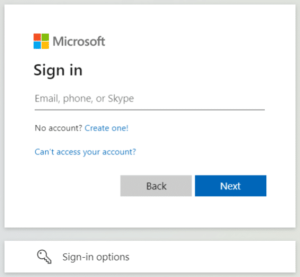
- The page to enter your password will show your company’s custom background picture (if it doesn’t, please contact us to enable this additional security feature). Enter your 365 password to continue.
- If your account is required to add additional information for MFA, you’ll see the following prompt:
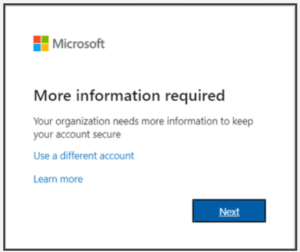
- Click Next and choose among the following additional methods to set up:
- Primary
- Microsoft Authenticator
- Third party authenticator
- Secondary
- Phone
- Primary
Microsoft Authenticator

Microsoft 365 will prompt to set up Microsoft Authenticator by default. Microsoft Authenticator is an app that you can install from the relevant app store on your iPhone, Windows phone, or Android phone, though you can choose to use a different third-party authenticator app (Google Authenticator, Duo, Authy, etc.) if you already have a preferred one installed for OATH TOTP.
- To set up Microsoft Authenticator, select Next and open Microsoft Authenticator on your phone (download from the store app if you haven’t yet). Click the + symbol at the top and, following the directions on the computer, select “Work or school account”, then “Scan a QR code” to use your phone to scan the QR code on the computer or “Sign in” to log into your 365 account on the phone. Either scanning the code or signing in will complete the setup. Proceeding on the computer, Microsoft will then verify with a simple push notification – select Approve on the prompt to your phone to verify.
Third-party Authenticator
- If you choose to use a third-party authenticator instead of Microsoft Authenticator, select “I want to use a different authenticator app” on the default authenticator app page.

- The look of each third-party authenticator app is a little different, but the process to add an account is generally the same. Click Next and 365 will provide a QR code – using the authenticator app on your phone, select to add a new account (usually Add Account or + symbol), and the app will request to scan the QR code.
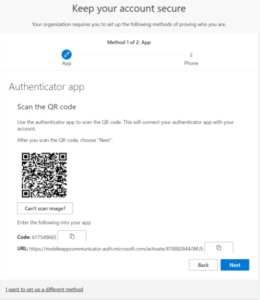
- If scanning the QR code doesn’t work, click the “Can’t scan image” box and you’ll see the raw code to enter into the app (will need to select similar on the phone app for it to skip the QR code and ask for the raw code directly).
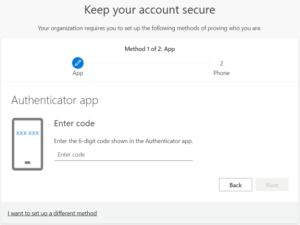
- Once the QR code or raw code is entered into the app, the authenticator app on the phone will provide a 6-digit TOTP code – enter the code and select Next on the computer to complete the third-party authenticator setup.
Phone
- The Phone option will ask for a phone number and request either a text or call to confirm ownership of the phone number entered.
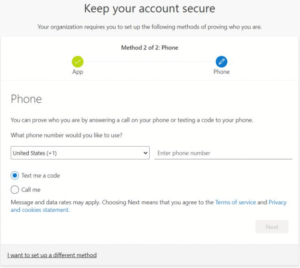
- Selecting text will deliver a text with a 6-digit code to the phone – just enter the code into the prompt on the computer to complete the setup. Selecting call will prompt an automated call from Microsoft to confirm (select #) or to deny (0# – if the phone number has a typo and someone else answered the call). Confirming the call will complete the setup.
After setting up an authenticator app or phone, email will be available as a secondary MFA option (not available as primary, only secondary) by choosing “I want to set up a different method” at the bottom of the MFA setup prompt. Simply enter a personal email address and, similar to the text option, Microsoft will email a 6-digit code and request the code to confirm ownership of the email address. This option is also available later as an additional backup MFA option.
MFA Setup Complete
Once both required options are set up, required MFA registration is complete. To view the MFA options set up for your account or to add additional backup options, go to https://mysignins.microsoft.com/security-info. Select “Add sign-in method” at the top to add an additional MFA method.
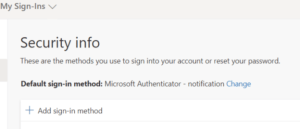
- An alternative password-less sign-in option is available here – choosing “Microsoft Authenticator – notification” will skip the password prompt during the login prompt and directly prompt for Push – Challenge, requesting the short code from your Microsoft Authenticator app to complete. As an additional security feature, the Microsoft Authenticator app will also show a small geo-located map of the source of the sign-in attempt.
If you need assistance with setting this up or are interesting in learning about the various options to better secure your data, click here to contact us and one of our experts will be in touch shortly.